


在线客服
更新时间:2026-07-28 19:57:03
Codex 是 OpenAI 官方推出的运行在终端中的 AI 编程助手,本章为安装教程。如果您已安装 Codex,在 Codex 中接入AI模型路由请参考下一章。
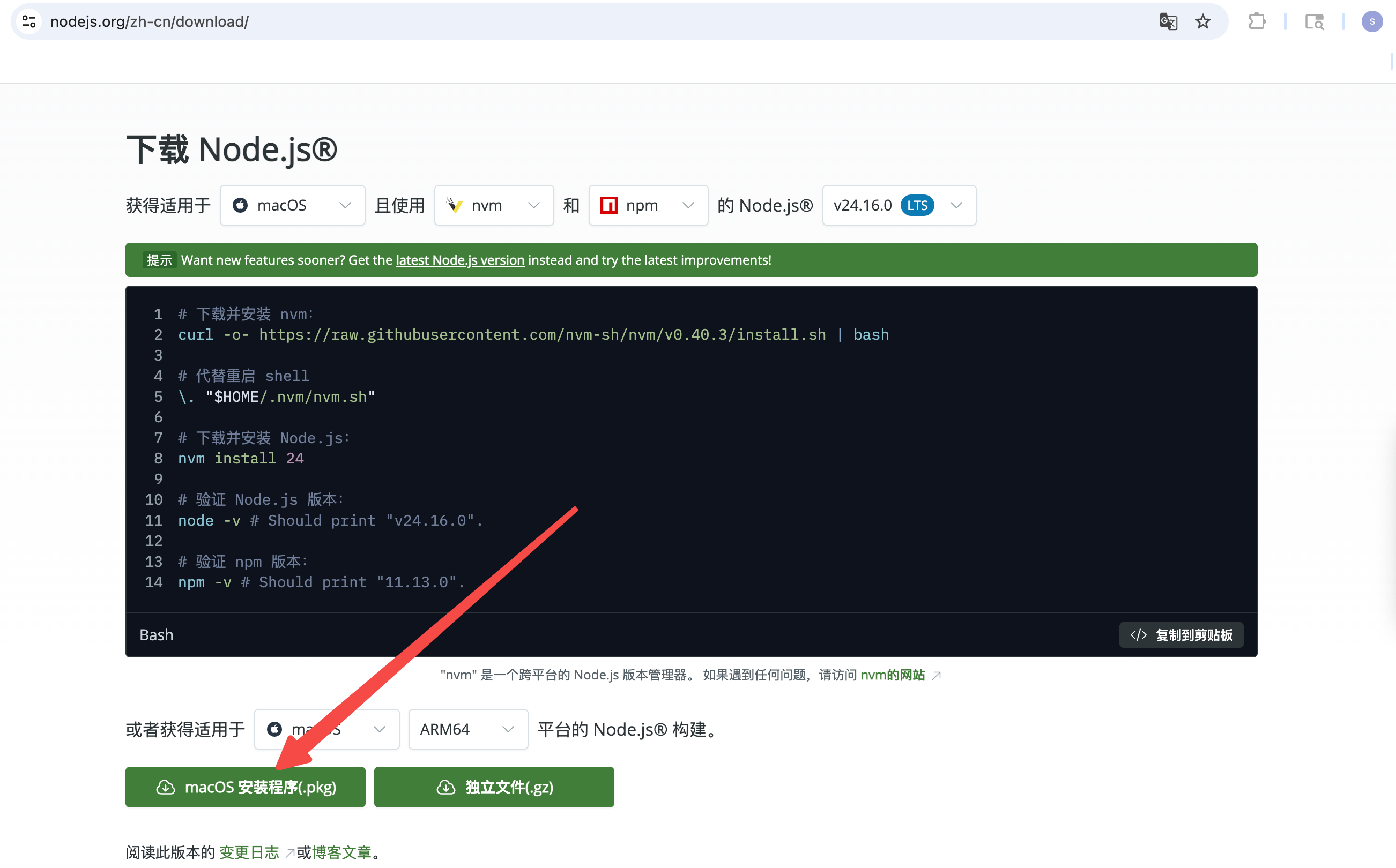
macOS 用户也可以直接使用 Homebrew 安装:brew install codex。
在命令行界面,执行以下命令安装 Codex:
复制成功npm install -g @openai/codex
复制成功codex --version
打开终端,把下面整段粘进去回车:
复制成功mkdir -p ~/.codex && cat > ~/.codex/config.toml <<'EOF'
model_provider = "chuanglanrouter"
model = "glm-5.2"
model_reasoning_effort = "high"
[model_providers.chuanglanrouter]
name = "ChuangLanRouter"
base_url = "https://router.253.com/v1"
env_key = "OPENAI_API_KEY"
wire_api = "responses"
EOF
打开 PowerShell(开始菜单搜「PowerShell」),把下面整段粘进去回车:
复制成功New-Item -ItemType Directory -Force -Path "$HOME\.codex" | Out-Null
@'
model_provider = "chuanglanrouter"
model = "glm-5.2"
model_reasoning_effort = "high"

[model_providers.chuanglanrouter]
name = "ChuangLanRouter"
base_url = "https://router.253.com/v1"
env_key = "OPENAI_API_KEY"
wire_api = "responses"
'@ | Set-Content -Path "$HOME\.codex\config.toml" -Encoding UTF8
把下面命令里的 <你的-API-key> 替换成你自己创建的API Key,API Key 在 灵智MaaS 获取。然后粘到终端执行。
复制成功echo 'export OPENAI_API_KEY="<你的-API-key>"' >> ~/.zshrc
source ~/.zshrc
复制成功echo 'export OPENAI_API_KEY="<你的-API-key>"' >> ~/.bashrc
source ~/.bashrc
复制成功[Environment]::SetEnvironmentVariable("OPENAI_API_KEY", "<你的-API-key>", "User")
Windows 用户:执行完上面命令后,关闭当前 PowerShell 窗口重新打开一次才能生效。
三步都做完后,在终端执行 codex 就会走 ChuangLanRouter。
如果你已经安装了 Codex,只需修改以下环境变量,其中 API Key 在 灵智MaaS 获取。
打开终端,把下面整段粘进去回车:
复制成功mkdir -p ~/.codex && cat > ~/.codex/config.toml <<'EOF'
model_provider = "chuanglanrouter"
model = "glm-5.2"
model_reasoning_effort = "high"
[model_providers.chuanglanrouter]
name = "ChuangLanRouter"
base_url = "https://router.253.com/v1"
env_key = "OPENAI_API_KEY"
wire_api = "responses"
EOF
打开 PowerShell(开始菜单搜「PowerShell」),把下面整段粘进去回车:
复制成功New-Item -ItemType Directory -Force -Path "$HOME\.codex" | Out-Null
@'
model_provider = "chuanglanrouter"
model = "glm-5.2"
model_reasoning_effort = "high"

[model_providers.chuanglanrouter]
name = "ChuangLanRouter"
base_url = "https://router.253.com/v1"
env_key = "OPENAI_API_KEY"
wire_api = "responses"
'@ | Set-Content -Path "$HOME\.codex\config.toml" -Encoding UTF8
把下面命令里的 <你的-API-key> 替换成你刚才在 Dashboard 复制的那串,然后粘到终端执行。
复制成功echo 'export OPENAI_API_KEY="<你的-API-key>"' >> ~/.zshrc
source ~/.zshrc
复制成功echo 'export OPENAI_API_KEY="<你的-API-key>"' >> ~/.bashrc
source ~/.bashrc
复制成功[Environment]::SetEnvironmentVariable("OPENAI_API_KEY", "<你的-API-key>", "User")
Windows 用户:执行完上面命令后,关闭当前 PowerShell 窗口重新打开一次才能生效。
两步都做完后,在终端执行 codex 就会走 ChuangLanRouter。